
Transfer Delivery and Picking Ticket Scanner (User Guide)
links: https://dashboard.mcjimleather.com
Access Control
Accounts are created by an administrator.
Only authorized IMD personnel can access the system.
Transfer Delivery Module
Create New Checklist
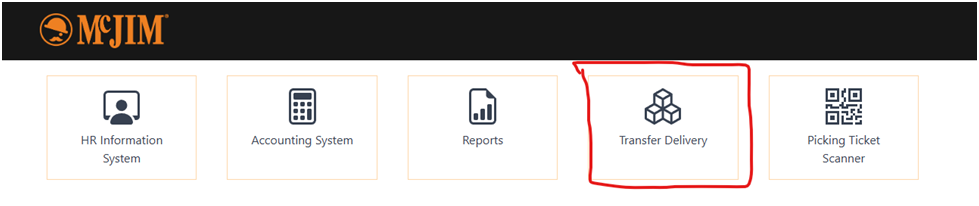
1. Open Transfer Delivery Module
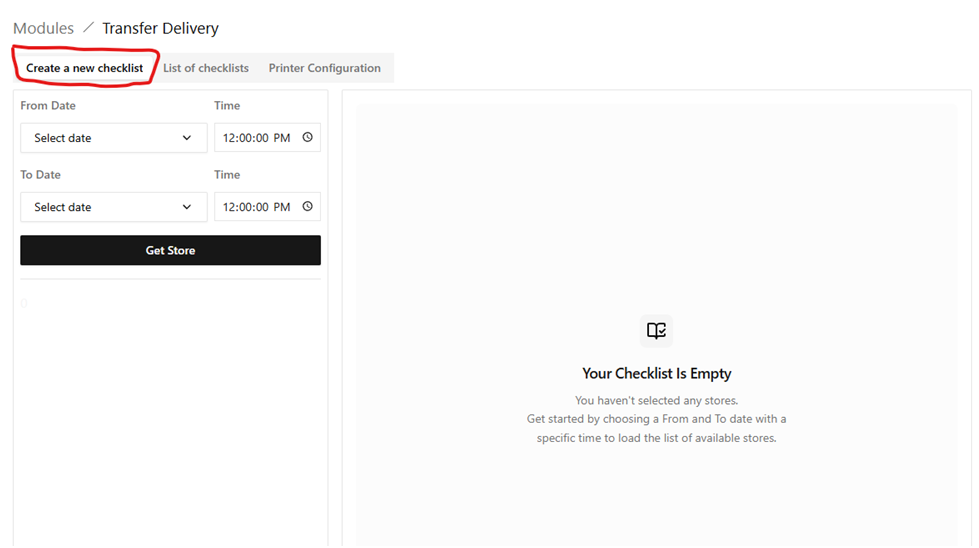
2. Default tab: Create New Checklist
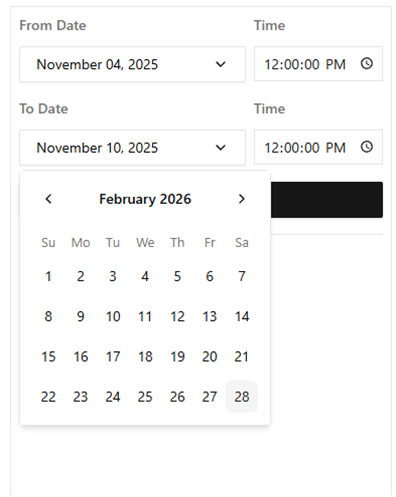
3. Select date and time range
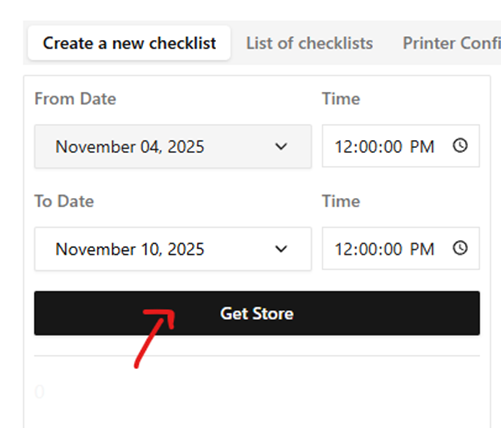
4. Click Get Store button
5. System loads stores and TD numbers
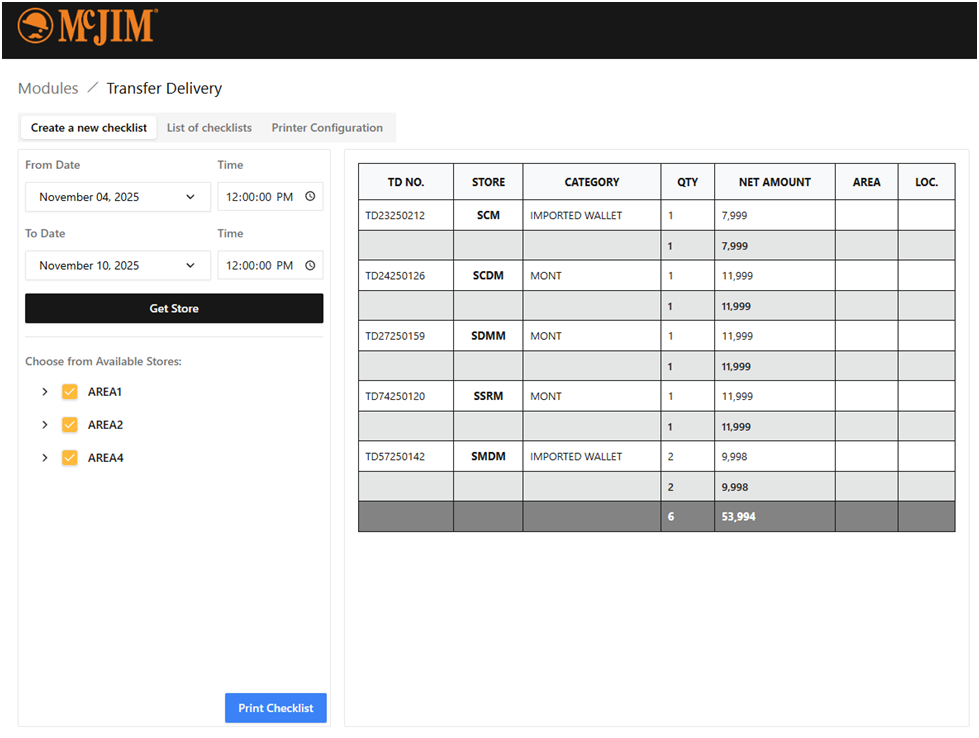
6. Select or deselect TD entries
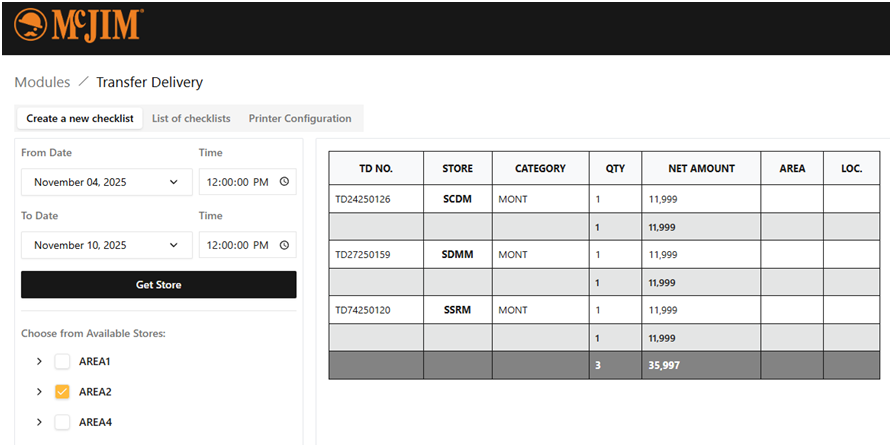
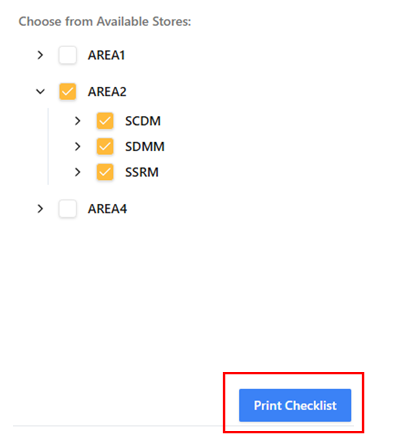
7. Click Print Checklist button
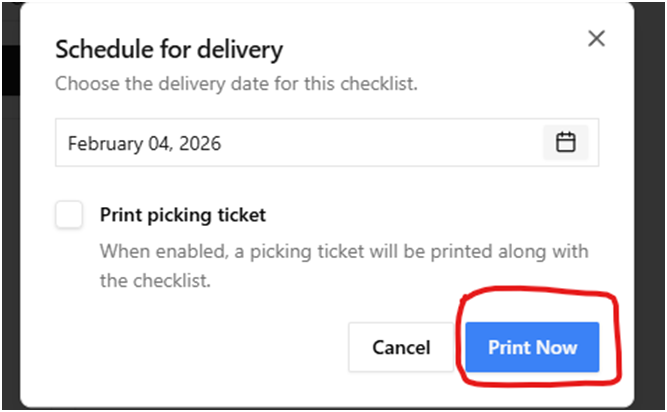
8. Enter scheduled delivery date
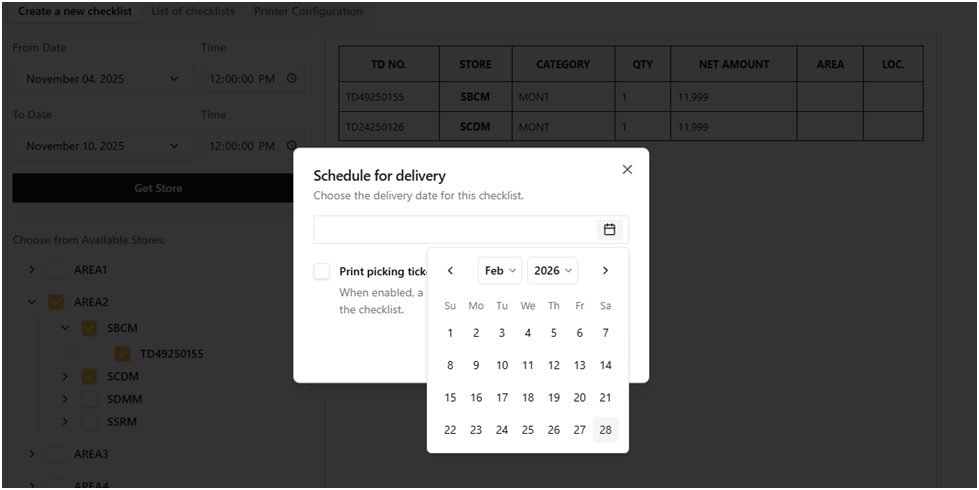
9. Optional: Print picking tickets
10. Click Print Now button
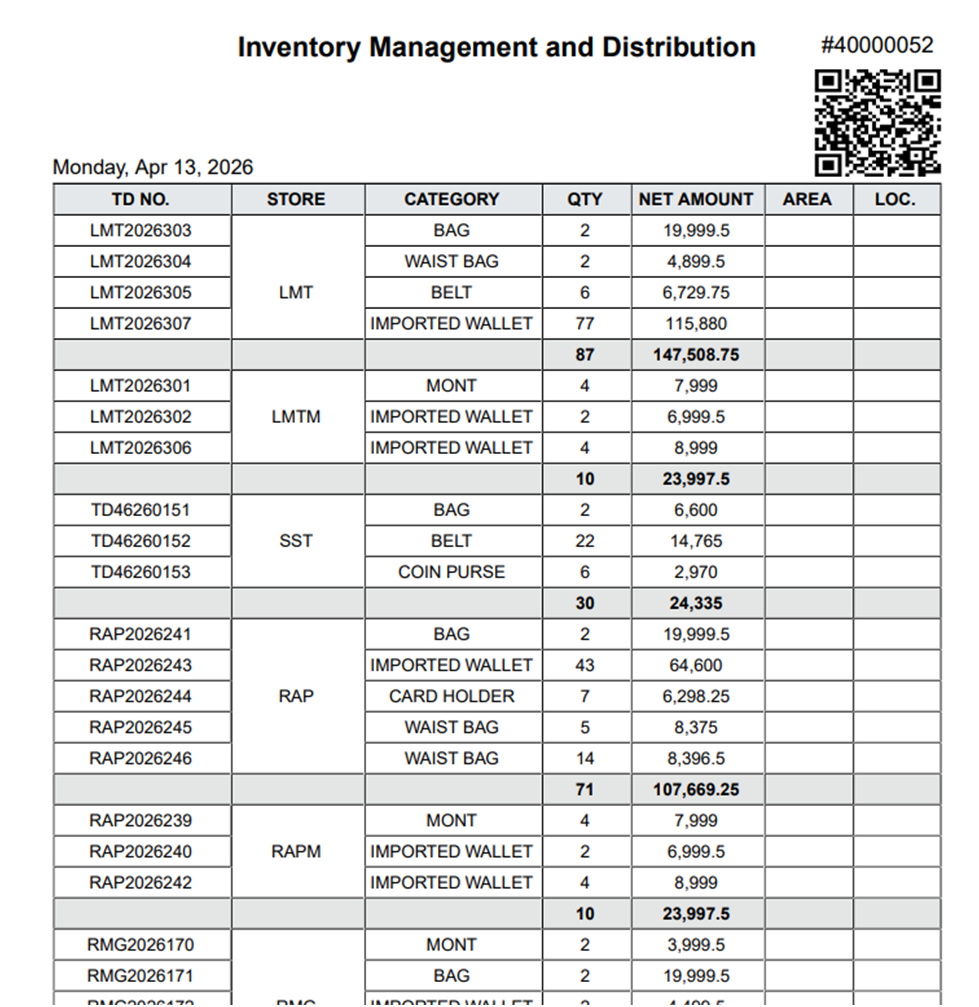
Generated checklist includes:
· QR code for live monitoring
· Table of selected TD numbers
· Delivery schedule information
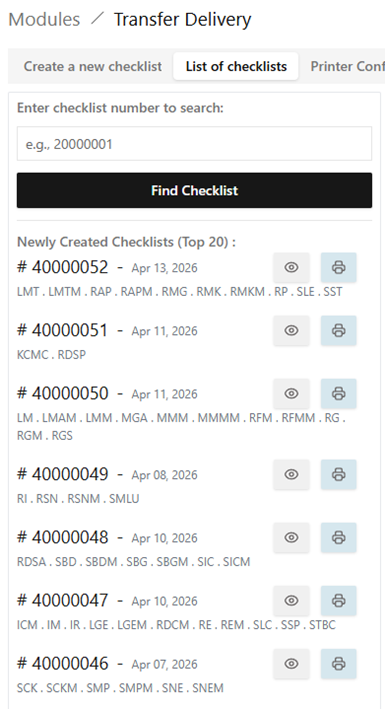
View Existing Checklists

Left Panel
· Search checklist number
· View latest 20 checklists
· Options: View / Print
Right Panel
· Checklist details
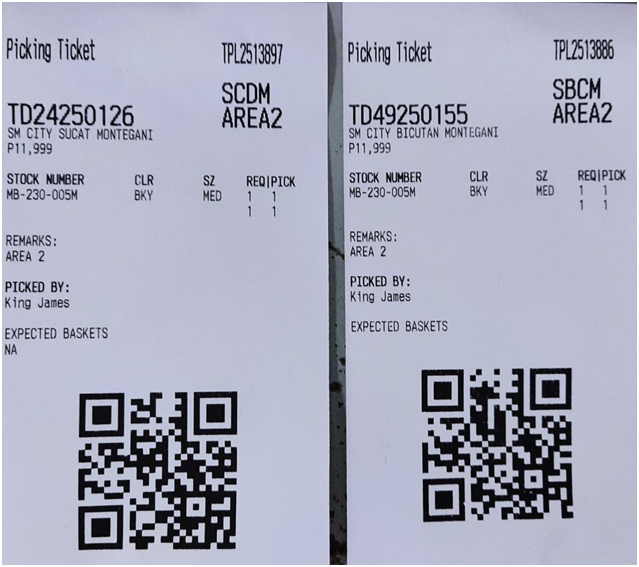
· Print options:
o Picking Ticket
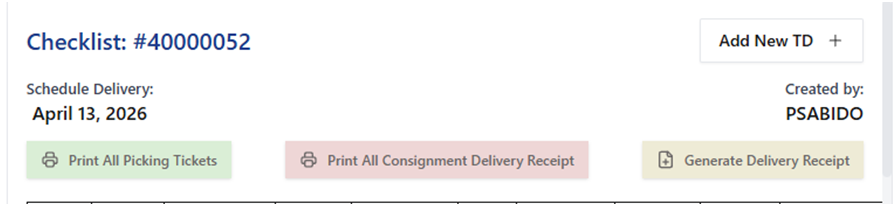
o Consignment Delivery Receipt
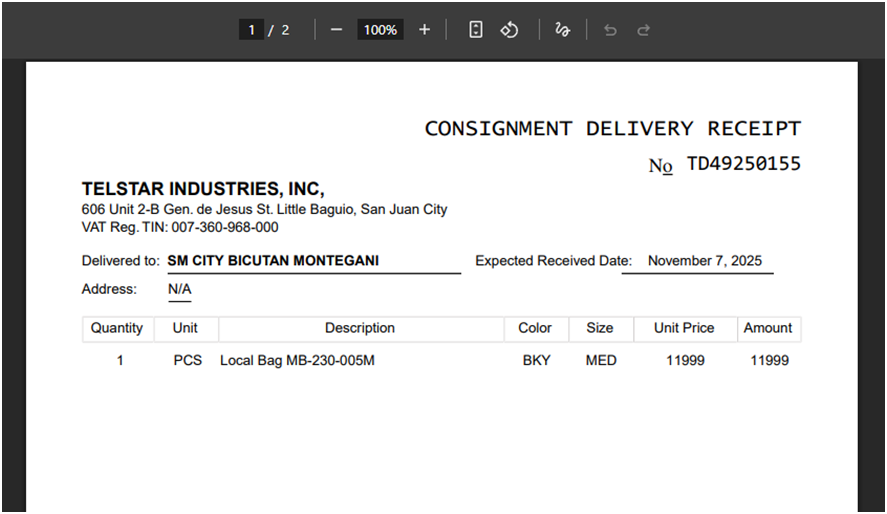
o Vendor Delivery Receipt
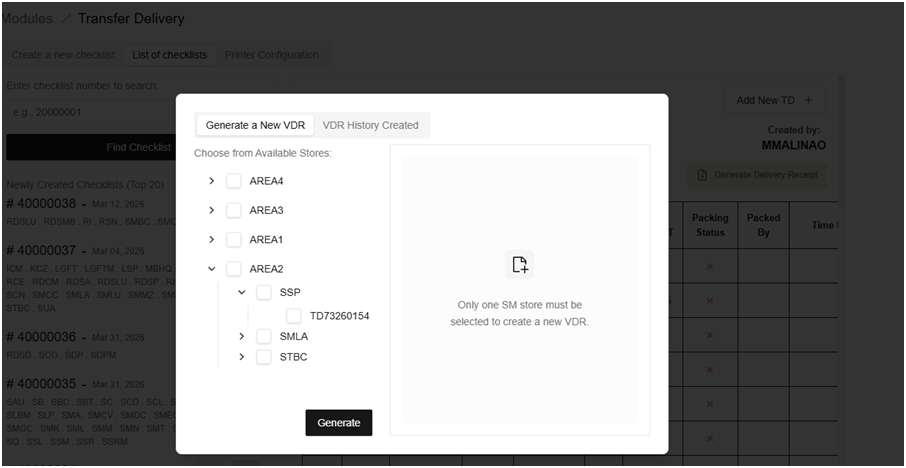
1. Select one SM store or TD under one SM store.
2. After you select, click the Generate button to create a new VDR.
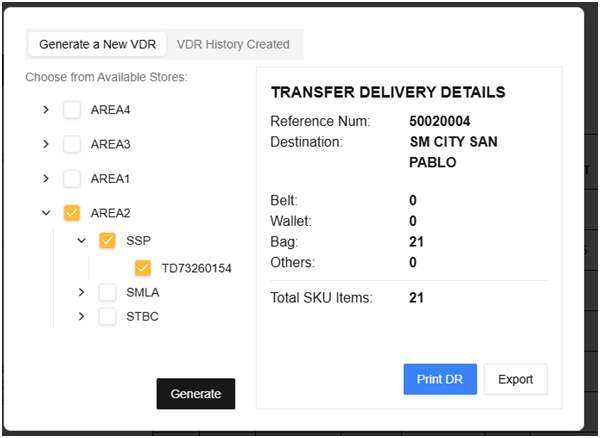
3. Here’s an example when you print the DR.
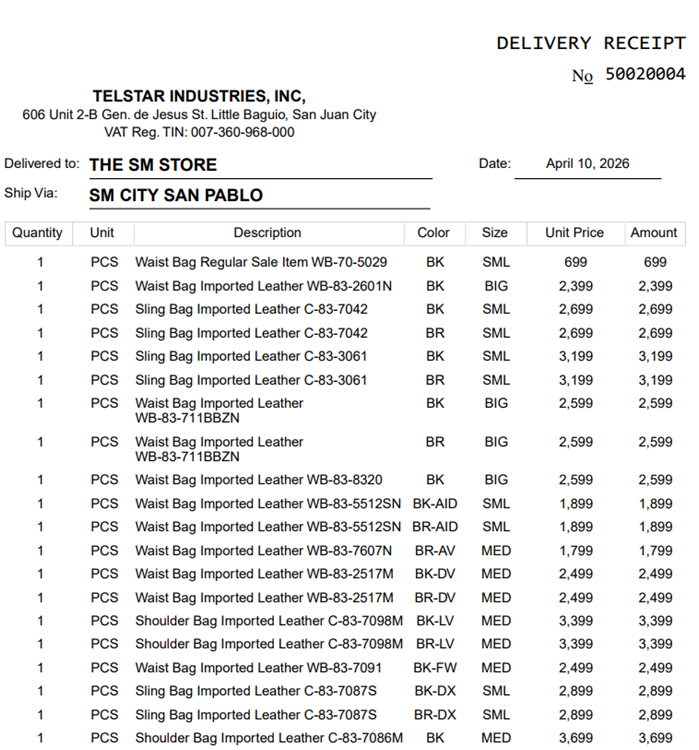
4. Example when you export the DR.
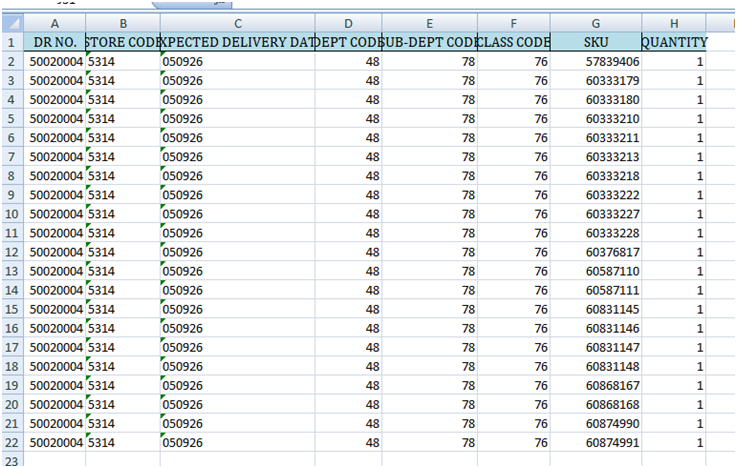
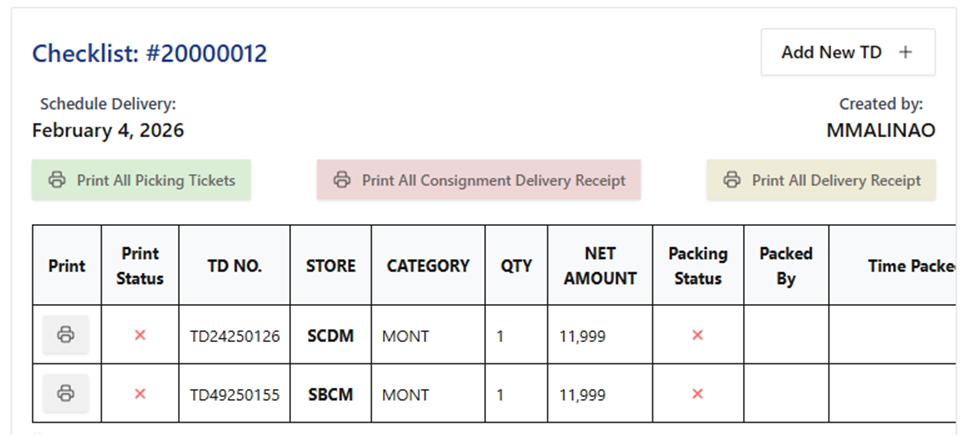
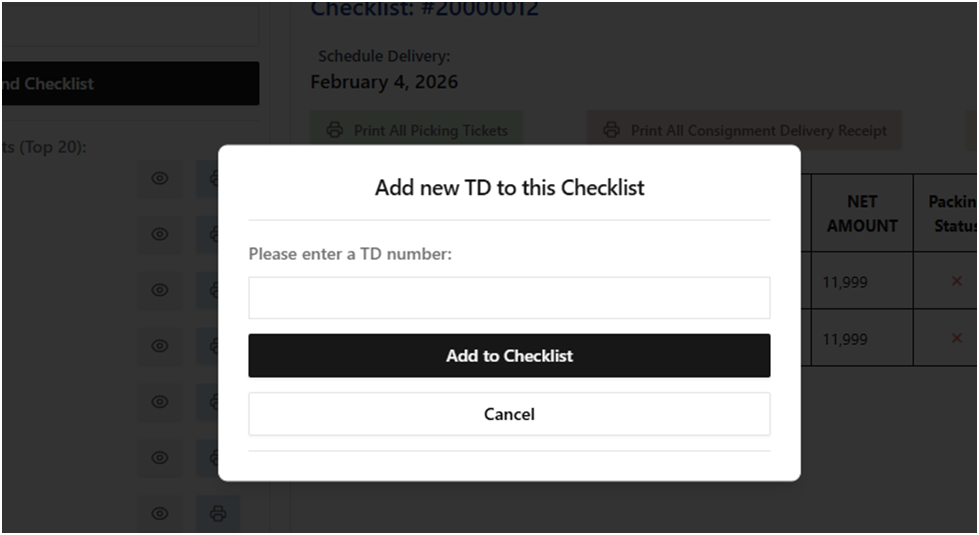
Add a new TD to the existing checklist
Users may add additional TD numbers to an existing checklist.
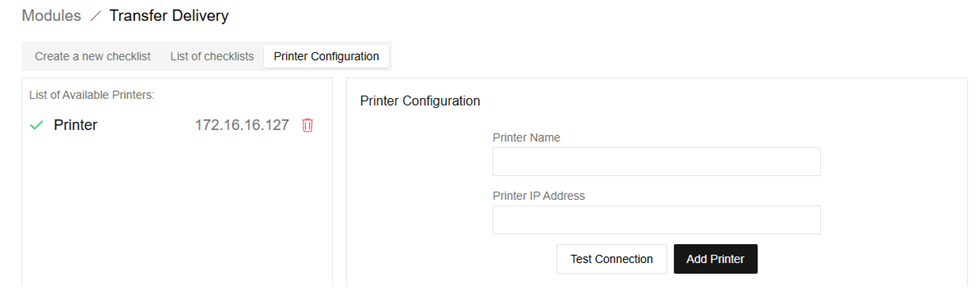
Printer Configuration

Printing is disabled until a printer is configured.
Setup Steps
1. Open Printer Configuration
2. Enter printer name
3. Enter printer IP address
4. Test the printer connection to verify if it is accessible
5. Save configuration
Multiple printers can be registered for redundancy and operational continuity
Picking Ticket Scanner Module
Used by packing personnel to record transfer completion.

Current Transfer Delivery Scans
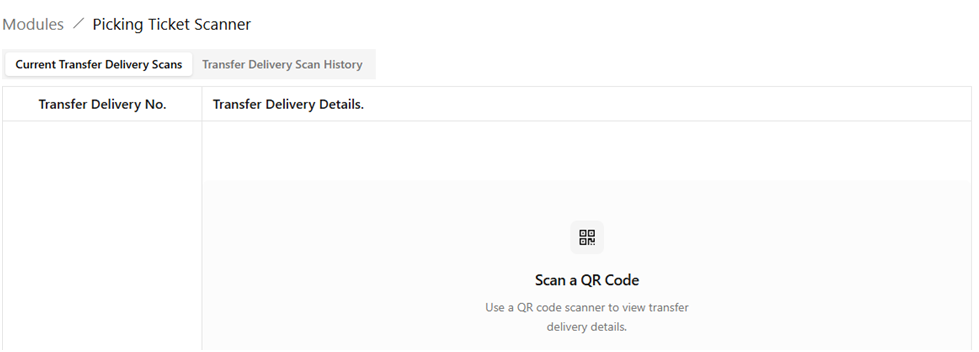
When a QR code is scanned:
· TD status is updated automatically
· TD-out record is created
· Live scanning activity is displayed
Interface Layout
Left Panel:
· TD numbers scanned today
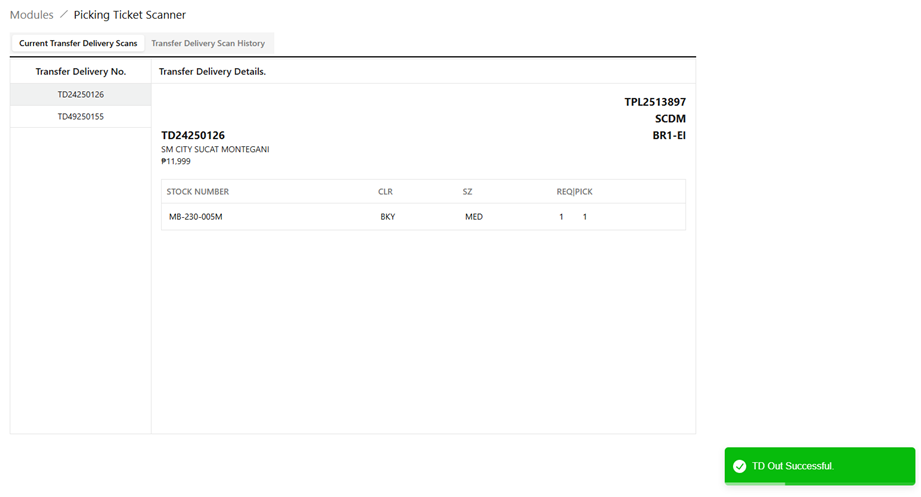
Right Panel:
· Details of selected TD
· Transfer status
This ensures no transfer delivery is missed.
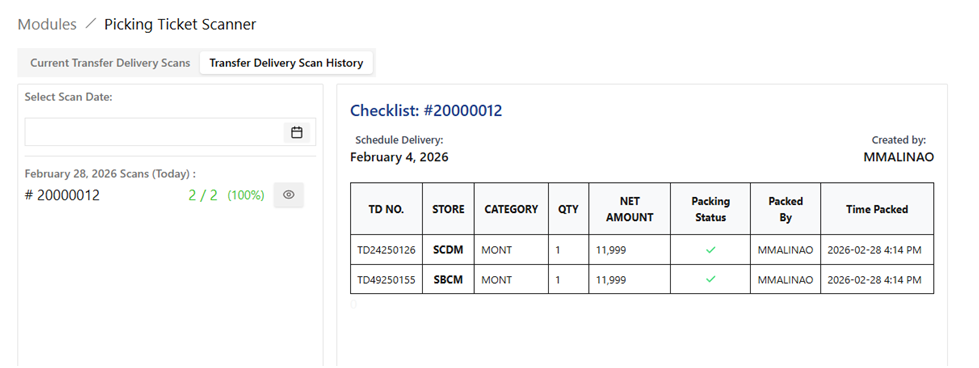
Transfer Delivery Scan History
Users can review historical scanning activity.
Left Panel:
· Select date
· View TD numbers scanned on that day
Right Panel:
· Checklist details
· TD completion status
No comments to display
No comments to display